Custom print and cut for the PixCut S1 on Mac, with a clear check first
CutPapa sends your finished layout to the Liene PixCut S1 over USB. The machine prints first and cuts second, in one job. Before sending, the pre-print check asks you to confirm which paper is loaded and shows the sticker count, blade pressure, and estimated time. If anything is wrong the job is not sent, and a failed job is never reprinted automatically.
Which papers can the PixCut S1 use?
Only two: 4×7 sticker paper (101.6 × 177.8 mm, can print and cut) and 4×6 photo paper (print only). The manufacturer warns that a wrong paper setting can damage the machine, so before every job you must confirm the paper that is actually loaded.
When 4×6 photo paper is selected, CutPapa prints only. A cut job is never sent.
What is checked before printing?
Whether the machine is idle and ready, whether the paper type is confirmed, whether the paper the machine reports clearly conflicts with your choice, whether cut lines and images stay within the paper, whether a cut line is too complex, and whether there is ink within 3 mm of the paper edge.
With ink within 3 mm of the edge, the three color passes can be misaligned by 0.5–1 mm, so the check warns you and offers a one-click inset.
What blade pressure should I use?
The default is KP 42, the value that peeled cleanly without cutting through the backing in our tests with the original sticker paper. The range is KP 30–60, and a warning appears above 50.
What happens if a job fails halfway?
The job stops, and the app tells you what the machine reported and what to do next. CutPapa never resends a job automatically, so it will not print another sheet during a paper jam or when the machine state is unclear.
Every job is recorded. When printing several sheets in a row, the paper type is confirmed again for each sheet. You can also run the whole flow in simulation mode first, which does not touch the machine.
Do I need to quit the original Liene Photo app?
Yes. While Liene Photo is open it holds the USB connection exclusively. Quit it before printing and cutting with CutPapa.
Last updated:
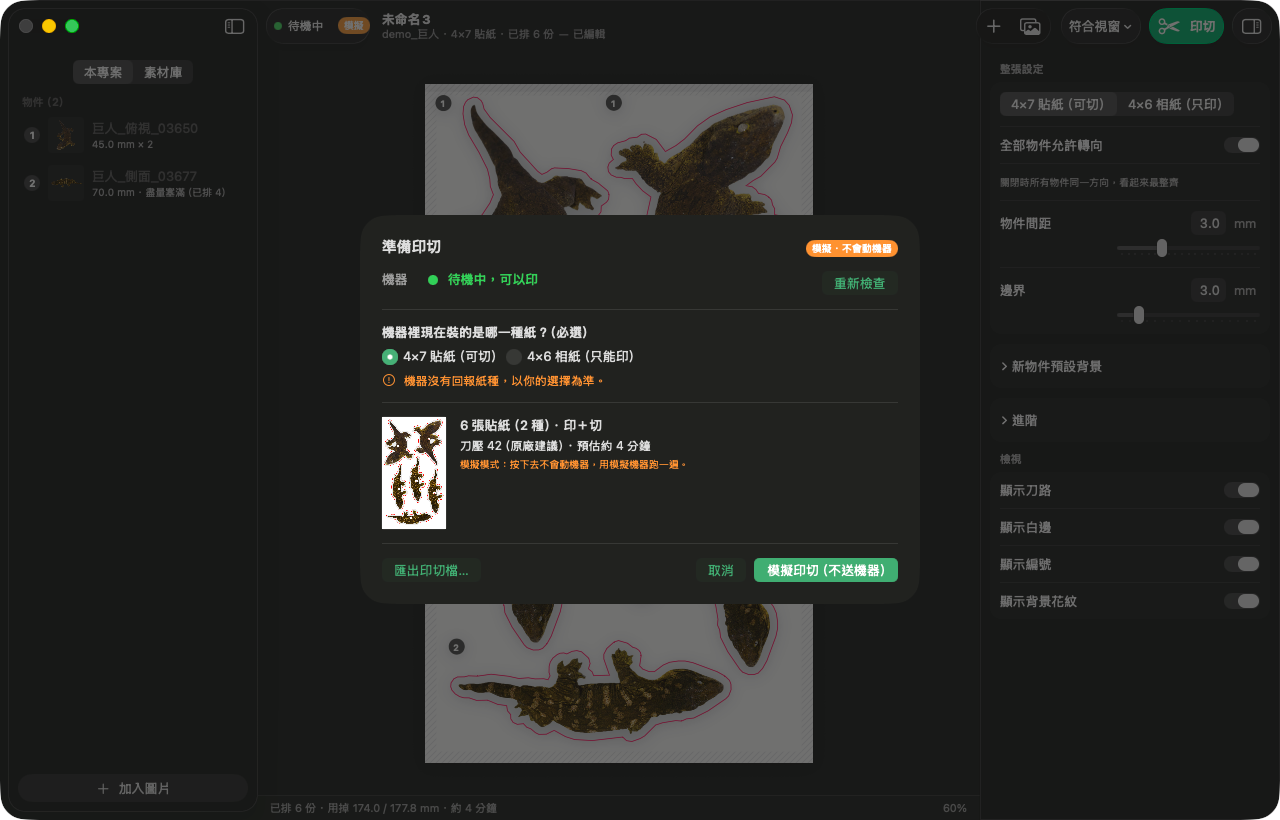
Screenshots show the Traditional Chinese interface.
More features
Auto layout that wastes no paper
Stickers keep a fixed gap. The app tries different orders and 0° / 90° / 180° / 270° rotations, then picks the arrangement that fits the most stickers in the shortest length of paper. Resize, change copies, or delete one, and the sheet re-arranges immediately. Automatic rotation can be switched on for the whole sheet to use the most space, or fixed per sticker when you want everything facing the same way.
One-step background removal, border and cut line included
Backgrounds are removed on your Mac with the Vision framework built into macOS. Photos are never uploaded. Set the white border from 0 to 5 mm per sticker; the cut line follows its outer edge. Cut lines are smoothed with rounded joins, and you can choose a softer rounded outline for cleaner sticker edges.